

 EN
EN  FR
FR  ES
ES 
White Label WordPress: Customize WPMasterToolKit and Control Access to Its Features
When you develop WordPress sites for your clients, you may not want them to see the names of all the tools used to build their site. You may also want to restrict access to certain plugins, even when your clients have an administrator account.
We developed the WPMasterToolKit White Label module to meet these needs.
This feature allows you to rename WPMasterToolKit in the list of WordPress plugins and specify exactly which administrators can access its features.
This allows you to further customize your clients’ WordPress environments while maintaining control over the configuration of your toolkit.
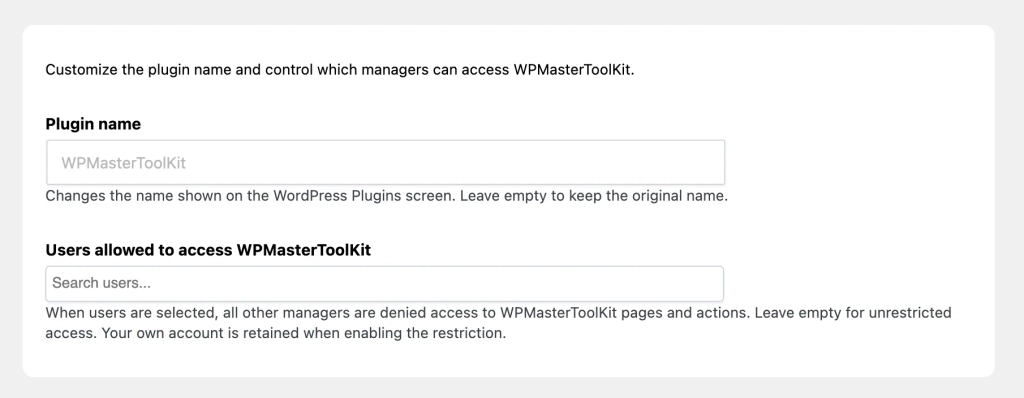
Why Use a White-Label Module on WordPress?
When you deliver a WordPress site to a client, they may need administrator access to manage their content, install plugins, or change certain settings.
However, that doesn't necessarily mean you want to give them access to all the technical tools you use to maintain their website.
For example, your agency may use WPMasterToolKit to manage various WordPress features. If a client accidentally changes certain settings, it could affect how the site functions.
The White Label module addresses two complementary needs:
- Customize the plugin name: Display the name of your choice instead of "WPMasterToolKit" in the list of plugins.
- Restrict access to WPMasterToolKit: Allow only certain administrators to access the plugin and its features.
These two options work independently. So you can simply rename the plugin, restrict access to it, or combine both features.
Customize the name of WPMasterToolKit in the list of plugins
The first feature of the White Label module allows you to change the display name for WPMasterToolKit in the WordPress admin interface.
By default, when you go to the «Plugins» page in WordPress, the plugin appears under its original name: WPMasterToolKit.
With the White Label module, you can replace it with a custom name.
For example, a web design agency might choose:
- Maintenance Tools
- Site Administrator
- Agency Tools
- Site Management Tools
The name you choose will appear in place of "WPMasterToolKit" in the list of installed plugins.
Customization without modifying the plugin files
Unlike manually modifying the extension's files, this feature does not change its technical identity.
The plugin retains its original ID and continues to function normally.
The change affects only the name displayed on the WordPress extensions page.
In particular, this means you don't need to edit the WPMasterToolKit PHP files to customize its appearance.
Please note: This feature does not constitute a complete rebranding. It does not automatically change the plugin’s name in all interfaces, its folder, its logo, or other branding elements.
If you leave the custom name field blank, WordPress will simply continue to display the original name.
Restrict access to WPMasterToolKit for certain administrators
The second feature of the White Label module allows you to control which users are authorized to access WPMasterToolKit.
This option is particularly appealing to web agencies and freelancers who deliver WordPress sites to their clients.
Let's say your site has three administrator accounts:
- An account belonging to your agency.
- An account belonging to your developer.
- An account belonging to your client.
You want your agency and developer to be able to continue configuring WPMasterToolKit, but you don't want your client to have access to the plugin's settings.
With the White Label module, all you have to do is select the two authorized accounts.
The third administrator will then no longer be able to access the WPMasterToolKit pages and management functions protected by the module.
Hide WPMasterToolKit from the admin menu
When an administrator is not authorized to access the plugin, the module automatically hides the WPMasterToolKit menu in their WordPress dashboard.
This user retains their other WordPress permissions, but they can no longer see the menu that provides access to the WPMasterToolKit settings.
This simplifies the interface while preventing accidental access to your toolbox settings.
Also block direct access
Hiding a menu is not enough to protect an administration page.
For example, a user might try to access a WPMasterToolKit configuration URL directly, even if the corresponding menu is no longer visible.
That is why we have also implemented access control for administrative requests.
When an unauthorized administrator attempts to access a WPMasterToolKit administration page identified by the module directly, the request is denied.
WordPress then displays a message stating that it does not have the necessary permissions, along with an HTTP 403 code.
AJAX requests from WPMasterToolKit that are recognized by the module are also protected.
This approach allows us to go beyond simply hiding the menu from view.
Maintain access to your own administrator account
When you enable an access restriction by selecting users, the module also provides protection for your own account.
If your account has the necessary permissions, it is automatically added to the list of authorized users when a non-empty selection is saved.
This way, you'll avoid accidentally logging yourself out of WPMasterToolKit while configuring the module.
What happens if no user is selected?
By default, no additional restrictions are applied.
If the list of authorized users is empty, administrators with the necessary WordPress permissions can continue to access WPMasterToolKit as usual.
The restrictions are enabled only when at least one user is listed.
You can therefore disable this restriction by completely clearing the list of authorized users and then saving the settings.
Easy management of authorized users
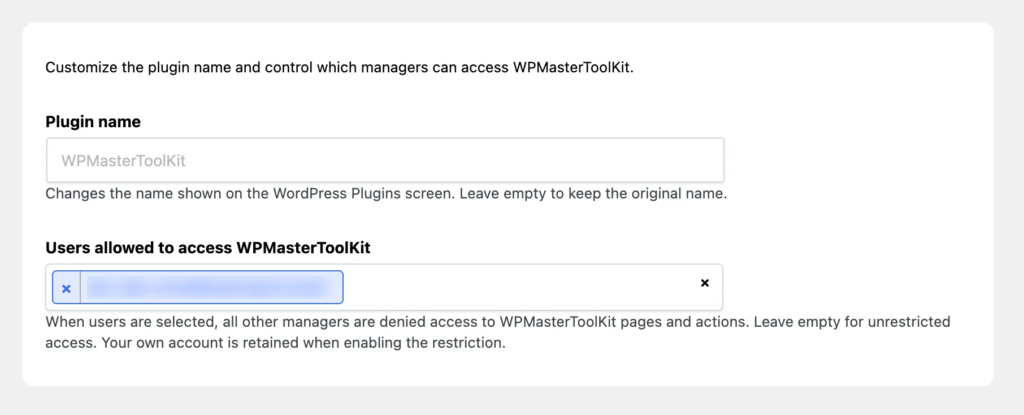
To make it easier to configure the module, we've added a search field that lets you select users directly from the administration interface.
You don't need to know the technical credentials for WordPress accounts.
Simply start typing the username or email address of the person you want to authorize.
After you enter at least two characters, the module performs a search and displays the matching accounts.
The search can also be based on the user's display name.
Only accounts that belong to the site and have WordPress capabilities manage_options can be selected.
You can then add multiple users to the list of authorized accounts.
This makes it easy to manage access, even when multiple developers or team members are working on the same site.
How do I use the White Label module in WPMasterToolKit?
The module is configured directly from the WordPress admin panel.
Here are the steps to follow:
- Enable the White Label module
Go to WPMasterToolKit and enable the White Label module. - Access the module settings
Open the White Label page from the WPMasterToolKit menu. - Customize the plugin name
In the «Plugin name» field, enter the name you want to appear in the list of WordPress plugins.
Leave this field blank if you want to keep the original name. - Select Authorized Administrators
In the «Users allowed to access WPMasterToolKit» field, search for and select the accounts that should retain access to the plugin.
Do not select any users if you do not want to apply any restrictions. - Save changes
Save your settings to apply the custom name and any access restrictions.
Once the configuration is saved, your settings remain active as long as the White Label module is loaded.
Our Technical Choices for the White Label Module
As with the other features of WPMasterToolKit, we aimed to provide a module that is easy to use, while maintaining WordPress's native functionality.
Change the plugin's name using WordPress filters
To customize the name of WPMasterToolKit, we use the native WordPress filter all_plugins.
This filter allows you to modify extension information before it is displayed in the list of installed plugins.
Our module identifies WPMasterToolKit using its technical ID, then replaces the fields Name and Title by the custom name defined by the user.
This method has one advantage: it does not require any changes to the extension's files.
The custom name is stored in the WordPress settings rather than directly in the plugin's code.
Check permissions and authorized users
Access restrictions are based on two complementary checks.
First, the user must have WordPress installed. manage_options, which is usually associated with administrator accounts.
If a list of authorized users has been defined, the user's ID must also be included in that list.
The module also verifies that the selected users are indeed members of the relevant WordPress site and have the necessary permissions.
User searches are based on an AJAX request secured by a WordPress nonce, while saving settings requires the appropriate permissions and a nonce check.
The recorded values are also cleaned and validated to ensure that only the expected data is retained.
Access Control Beyond the Menu
We have deliberately separated menu hiding from the control of administrative requests.
The menu is hidden from unauthorized administrators, but the plugin also intervenes during WordPress initialization to deny access to pages and actions identified as belonging to WPMasterToolKit.
Thus, the restriction is not based solely on the visibility of interface elements.
Finally, in keeping with the modular philosophy of WPMasterToolKit, the PHP class for the White Label module is loaded only when the module is activated. This means that deactivated features do not load their PHP classes unnecessarily.
Conclusion
With the WPMasterToolKit White Label module, you can customize the name of your WordPress toolkit and control which administrators can access its features.
Whether you're a freelancer, a developer, or the head of a web agency, this feature lets you create an administrative environment that's better suited to your needs and those of your clients.
By renaming the plugin, hiding its menu, and controlling direct access, you can maintain control over WPMasterToolKit's settings without having to modify its source code.
Enable the White Label module in WPMasterToolKit to customize your plugin and control access to its settings.