

 EN
EN  FR
FR  ES
ES 
Pixel Tag Manager: Manage your tracking pixels and tags directly from WordPress
Installing Google Analytics on a WordPress site is usually fairly simple. But as soon as you need to add Google Ads, Meta Pixel, TikTok Pixel, LinkedIn Insight Tag, or Microsoft Advertising, managing all those different tags can quickly become complicated.
So you end up installing several plugins and manually adding scripts to the <head> from the site or route all tracking through Google Tag Manager.
We developed the module to simplify this process Pixel Tag Manager by WPMasterToolKit.
It allows you to centralize the configuration of the main audience measurement and advertising solutions from within WordPress, while providing centralized management of consent and rules for determining when tracking should be loaded.
Which plugin can the Pixel Tag Manager module replace?
Pixel Tag Manager can replace many small plugins whose sole purpose is to integrate a tracking pixel or tag into WordPress.
Instead of having one plugin for Google Analytics, another for Meta Pixel, and yet another for TikTok, you can manage your various destinations from a single module in WPMasterToolKit.
The module currently supports 8 destinations :
- Google Tag Manager
- Google Analytics 4
- Google Ads
- Meta Pixel
- TikTok Pixel
- LinkedIn Insight Tag
- Microsoft Advertising UET
- Pinterest Tag
Each destination can be enabled or disabled independently.
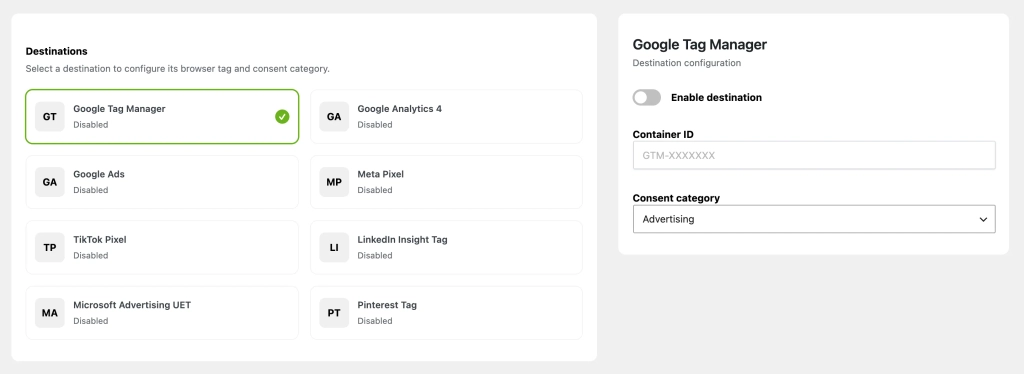
All your tracking tags in a single interface
Pixel Tag Manager is based on a system of destinations.
Select the service you want to use, enable the destination, and then enter its ID.
Each integration requests only the information it needs:
| Destination | Configuration |
|---|---|
| Google Tag Manager | Container ID (GTM-XXXXXXX) |
| Google Analytics 4 | Measurement ID (G-XXXXXXXXXX) |
| Google Ads | Conversion ID (AW-123456789) and, optionally, a conversion label |
| Meta Pixel | Pixel ID |
| TikTok Pixel | Pixel ID |
| LinkedIn Insight Tag | Partner ID |
| Microsoft Advertising UET | UET Tag ID |
| Pinterest Tag | Tag ID |
Identifier formats are validated during registration to prevent the storage of obviously invalid values.
Use Google Tag Manager or load your pixels directly
The module does not require you to use a single method.
You can use Google Tag Manager and simply enter your Container ID, or directly enable the various destinations you need.
This flexibility is particularly useful if you want to use Google Analytics directly while also adding, for example, the Meta Pixel or the LinkedIn Insight Tag without using a GTM container.
However, you should avoid declaring the same tag twice.
If Google Tag Manager and one or more direct destinations are enabled at the same time, Pixel Tag Manager will display a warning. This allows you to verify that a pixel loaded directly by WPMasterToolKit is not also present in your GTM container.
In particular, this helps prevent duplicate triggers and events from being counted more than once.
Precisely control which visitors can be tracked
Not all visitors to a website necessarily trigger your tracking tools.
When you work on your own website every day, your visits can, for example, skew your Google Analytics statistics.
Pixel Tag Manager offers several global tracking rules.
You can remove directors, exclude all logged-in users or select the specific WordPress roles to exclude.
A site with custom roles can therefore also prevent these users from triggering tracking.
By default, administrators are excluded from tracking.
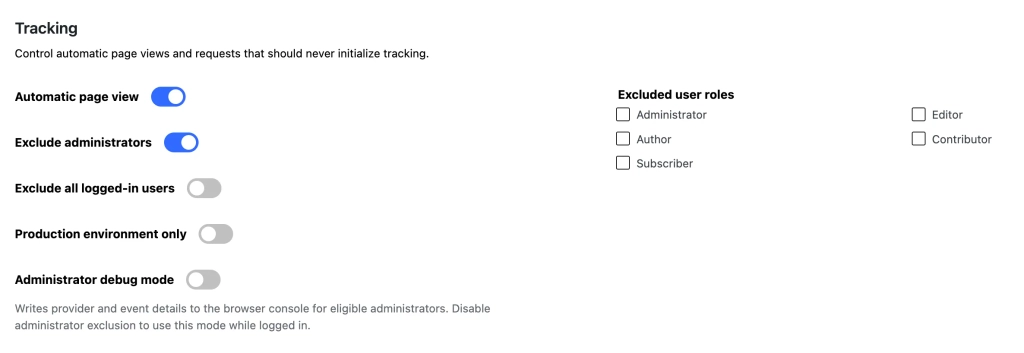
Load pixels only in production
Pixel Tag Manager can also limit tracking to the WordPress environment of the type production.
When the corresponding option is enabled, the module takes into account the type of WordPress environment and initiates tracking only when it matches production.
This is particularly useful for sites that have development or staging environments.
This way, you avoid sending the visits generated during your tests to your analytics tools and advertising platforms.
Automatically Manage Page Views
Pixel Tag Manager offers an option Automatic page view.
When enabled, the configuration sent to the frontend runtime specifies that page views should be tracked automatically.
This option is enabled by default and can be disabled if you want to handle page view events differently, such as as part of a custom integration.
A Consent Management System Common to All Destinations
Managing ad pixels isn't just about injecting scripts into WordPress. You also need to be able to control when they load based on the consent status available on the site.
Pixel Tag Manager distinguishes between two categories:
Analytics for tools related to audience measurement and Advertising for advertising tools.
Each destination can be individually assigned to one of these two categories. Google Analytics 4 uses the "Analytics" category by default, while other providers use "Advertising" by default. This assignment can be changed in the settings.
You can then set the initial status for each category:
GrantedDenied
These values represent the state that was in effect before any consent management platform provided an update.
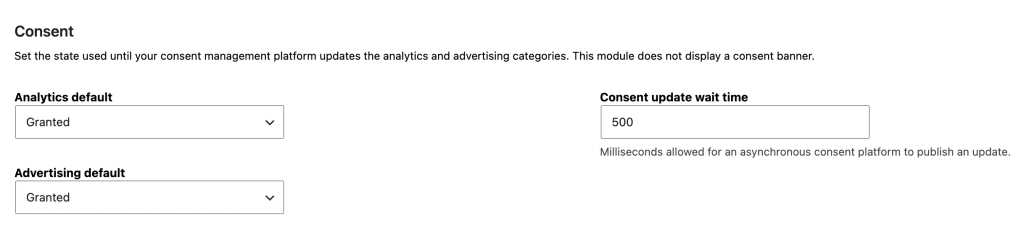
Pixel Tag Manager does not replace your cookie banner
It is important to make this distinction: Pixel Tag Manager does not display a consent banner.
The module manages the consent status used by its tracking system, but it is not itself a CMP (Consent Management Platform).
In particular, you can set a timeout to allow an asynchronous consent solution time to send an update. This timeout can be configured between 0 to 10,000 milliseconds, with a default value of 500 ms.
This allows Pixel Tag Manager to be integrated into an architecture where user preferences are managed by an external solution.
Conditional loading rather than simply injecting scripts
We didn't want Pixel Tag Manager to be just a field for pasting JavaScript into the WordPress header.
Even before initializing its frontend runtime, the module checks whether the current request can be tracked.
In particular, tracking is not enabled on the WordPress admin panel, feeds, bot requests, and trackbacks. It is also disabled in the Customizer preview.
The rules regarding the environment, logged-in users, and excluded roles are then applied before the runtime is loaded.
Another notable feature: if no active destination is properly configured, the Pixel Tag Manager frontend script simply isn't loaded.
This is in line with WPMasterToolKit's overall philosophy: Load only what is truly necessary.
A noscript fallback for Google Tag Manager
Google Tag Manager has a unique feature: its standard installation also includes a fallback <noscript> containing an iframe.
Pixel Tag Manager can automatically generate this fallback in wp_body_open.
However, it is only added when Google Tag Manager is enabled, its Container ID is configured correctly, and the associated consent category is already in the state granted.
The fallback, therefore, also adheres to the module's consent logic.
Standardized events and validated data
Pixel Tag Manager also includes a mechanism for sending known events to the front end as soon as the page is generated.
The events recognized by the module are:
page_view, view_content, search, lead, sign_up, login, contact, download, click, conversion and custom_event.
The associated payloads are not transmitted as-is. The module applies a list of allowed properties and ignores the other fields.
For example, we find content_id, currency, item_id, item_name, price, quantity, search_term, transaction_id, value, page_title, page_path or even link_url.
In particular, this choice helps limit the risk of accidentally transmitting arbitrary personal information through this mechanism.
The data is also limited in depth, in the number of elements, and in the length of character strings.
A debug mode reserved for administrators
To make it easier to set up tracking, Pixel Tag Manager offers a administrator debug mode.
When enabled, the runtime can write information about providers and events to the browser console.
Debug mode is only exposed in the frontend configuration for users with the WordPress capability manage_options.
If the exclusion of administrators is enabled, no tracking will be initiated for them. You must therefore temporarily disable this exclusion if you want to test debug mode while logged in as an administrator.
How do I use the Pixel Tag Manager module?
Start by enabling Pixel Tag Manager in WPMasterToolKit, then open its configuration page.
Next, select the destination you want to install, enable it, and enter the ID requested by the platform.
For example, for Google Analytics 4, simply enter your Measurement ID in the format G-XXXXXXXXXX. For Meta Pixel, enter your Pixel ID. For Google Tag Manager, use your Container ID starting with GTM-.
Next, select the consent category that corresponds to the destination.
In the general settings, configure your tracking rules: automatic page views, exclusion of administrators, optional exclusion of logged-in users or certain roles, and restriction to the production environment.
Finally, configure the initial status of the Analytics and Advertising categories based on your consent management system.
Why was a provider-based architecture created?
Pixel Tag Manager is based on an architecture that is common to all platforms.
Each provider primarily declares its name, the credentials it requires, and, if necessary, its default consent category. The common logic then handles validation, activation, and the configuration interface.
This approach avoids duplicating all the logic for Google Analytics, Meta, TikTok, or other platforms.
It also allows WPMasterToolKit to load and instantiate only the providers defined by the module, with a clear structure that makes it easy to add new supported destinations.
Filters Available to Developers
Pixel Tag Manager provides several WordPress filters that allow you to customize its behavior in advanced integrations.
wpmastertoolkit/pixel_tag_manager/can_track
This filter allows you to modify the final decision regarding whether tracking can be initiated for the current request.
It takes two parameters: the Boolean $can_track and all of the $settings of the module.
For example, it can be used to prevent tracking on certain pages based on a rule specific to your project.
add_filter(
	'wpmastertoolkit/pixel_tag_manager/can_track',
	function ( $can_track, $settings ) {
		if ( is_page( 'private-area' ) ) {
			return false;
		}

		return $can_track;
	},
	10,
	2
);
wpmastertoolkit/pixel_tag_manager/frontend_config
This filter allows you to modify the public configuration sent to the JavaScript runtime.
He receives $config and $settings.
Since this configuration is displayed in the frontend, No confidential information or personal data should be included in it.
add_filter(
	'wpmastertoolkit/pixel_tag_manager/frontend_config',
	function ( $config, $settings ) {
		// Modify the public frontend configuration here.
		return $config;
	},
	10,
	2
);
wpmastertoolkit/pixel_tag_manager/initial_consent
This filter allows you to set or modify the known consent status on the server side before the providers are loaded.
He receives an array containing the reports analytics and advertising.
add_filter(
	'wpmastertoolkit/pixel_tag_manager/initial_consent',
	function ( $consent ) {
		$consent['analytics']   = 'denied';
		$consent['advertising'] = 'denied';

		return $consent;
	}
);
The final values are normalized by the modulus: only granted and denied are accepted.
wpmastertoolkit/pixel_tag_manager/initial_events
This filter allows you to add known events at the time WordPress generates the page.
add_filter(
	'wpmastertoolkit/pixel_tag_manager/initial_events',
	function ( $events ) {
		$events[] = array(
			'name'    => 'view_content',
			'payload' => array(
				'content_id'   => get_the_ID(),
				'content_type' => 'post',
			),
		);

		return $events;
	}
);
Events and their payloads are then validated and cleaned by Pixel Tag Manager before being sent to the front end. Only event names and properties that are explicitly supported are retained.
Conclusion
With Pixel Tag Manager, WPMasterToolKit allows you to centralize a significant portion of your WordPress tracking configuration in a single module.
Google Tag Manager, Google Analytics 4, Google Ads, Meta Pixel, TikTok Pixel, LinkedIn Insight Tag, Microsoft Advertising UET, and Pinterest Tag can be configured from the same interface, with common rules for consent and the exclusion of certain visits.
The goal is not simply to add additional scripts to WordPress. Rather, the module aims to determine when tracking should be initialized, which destinations should be loaded, and under what consent conditions.
This allows you to maintain a centralized tracking configuration in WPMasterToolKit, without having to use multiple small plugins dedicated to each platform.