

 EN
 FR
 ES

"Comment on Everything" Module: Internal Discussions Pinned Directly to Your Site
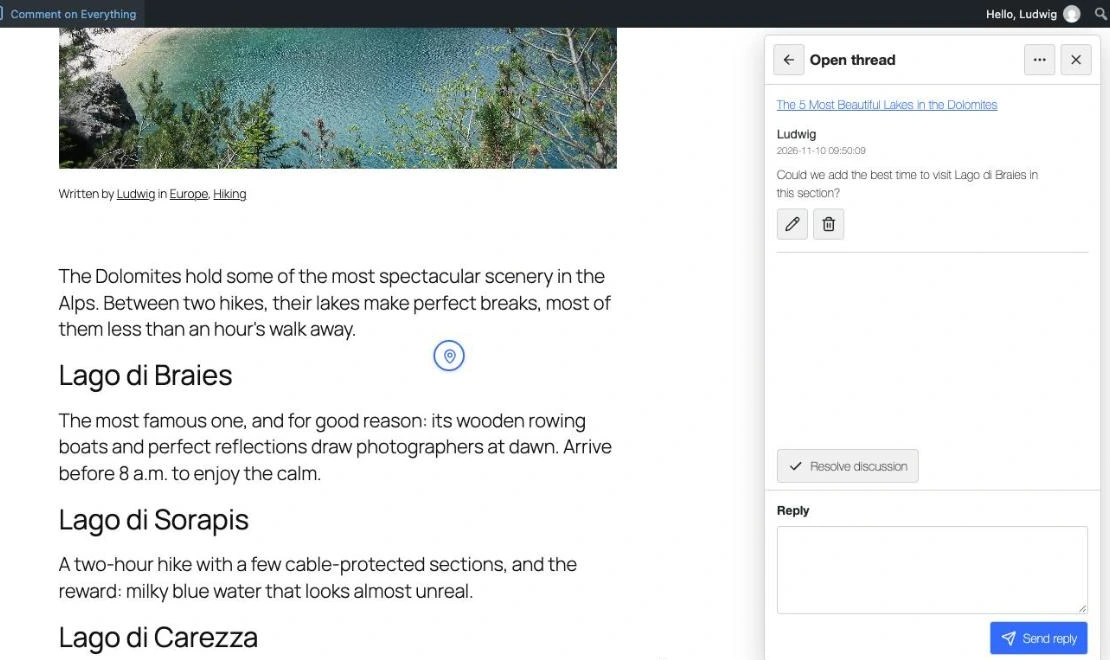
Exchanging feedback on a website via email or annotated screenshots means losing the context. With How to Comment on Everything, you click on an element on the page (a title, a paragraph, a button, etc.) and pin a discussion to it. Your team members will see the pin in the right place, reply in the thread, and mark it as resolved. These discussions are private: only authorized, logged-in users can see them. The module is free; certain features are available only in the Pro version.
Which plugin can this module replace?
For internal use, it replaces visual feedback tools such as Atarim, SureFeedback (ProjectHuddle) or Marker.io. It is designed for teams connected to WordPress: visitors who are not logged in cannot comment, and no email notifications are sent.
Main features
Where can I leave a comment?
- On the public website: articles, pages, and personalized content; the homepage and the articles page (excluding password-protected content, archives, search results, and 404 pages).
- In the government: dashboard, content lists, editing screen (excluding the block editor), users, media library, and comments.
Each user can see only the discussions on the pages and screens to which their WordPress permissions grant them access.
Pin a discussion
Click «Comment on Everything» in the admin bar (or on the floating button), then click «New discussion»: the items on the page are highlighted when you hover over them; simply click the one you want to comment on. You can also use the keyboard to select items (Tab to navigate, Enter to confirm, Esc to cancel). If the item disappears after the page is updated, the discussion will indicate that you need to pin it again.
The "Discussions" panel
- List of discussions on the page or screen, filterable by scope and status (open, resolved, all).
- Replies within the thread; editing and deleting your own posts.
- «Resolve discussion» and «Reopen discussion» to track progress.
- Direct access to a discussion page or screen.
Screenshots (Pro)
In Pro, a screenshot of the commented area, with the pin, is attached to each new discussion. Form fields, iframes, and videos are hidden in the screenshot to prevent sensitive data from appearing.
Employees (Pro)
In the free version, only administrators can collaborate. The Pro version allows you to open discussions to entire roles (editors, authors, clients, etc.) or to specific users.
Discussion Management
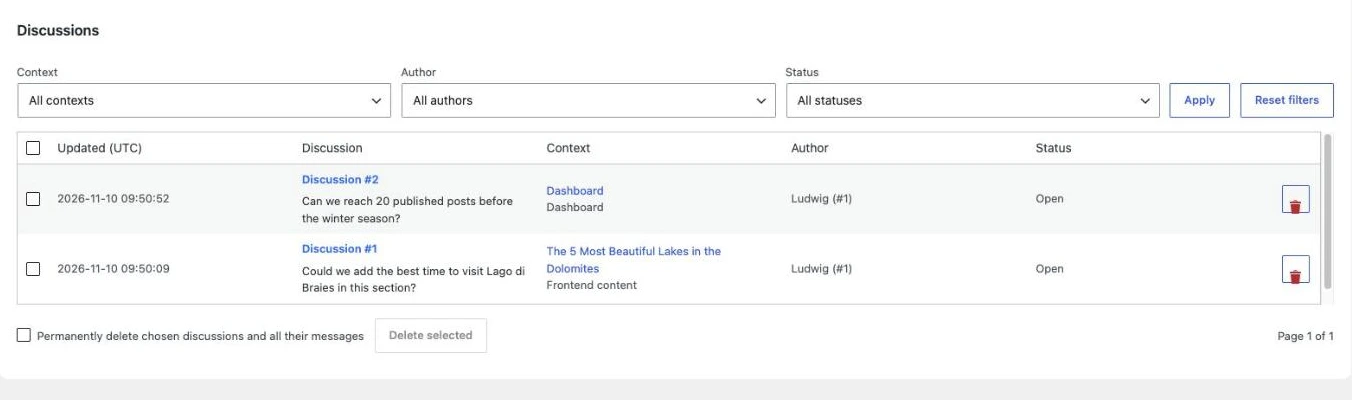
The module screen lists all discussions: update date, message, context, author, and status. You can open a discussion, reply to it, and delete discussions one by one or in bulk. In the Pro version, filters by context, author, and status make it easier to keep track of discussions.
How to use this module
- Activate How to Comment on Everything in WPMasterToolKit.
- In Pro, open WPMasterToolkit > How-To on Everything to select roles and collaborators and enable screenshots.
- On a page of the site or an admin screen, click «Comment on Everything» in the admin bar.
- Click «New discussion,» select the item, and write your message.
- Reply in the thread, then click «Resolve discussion» once the issue has been addressed.
Our technical choices
- Discussions, messages, and screenshots are stored in three dedicated tables, not in the WordPress comments section: they never get mixed in with public comments.
- The anchor for a discussion is based on the HTML ID of the element or, if that is not available, on a hash of its tag and text, which makes it possible to locate the element even if the layout changes. The attribute
data-wpmtk-capture-privateexcludes an item from the selection and captures. - Permissions are verified on the server side for every action, and pages that display the panel are not cached.
- Screenshots (PNG files up to 640 × 400 px) are stored in the database and made available only to authorized users.
- The data is retained if you deactivate the plugin, and is deleted when you uninstall WPMasterToolKit.
Conclusion
How on Everything centralizes your team’s feedback where it matters most: right on the page itself. The free version is enough for collaboration among administrators; the Pro version opens it up to your editors or clients, with screenshots and tracking filters.