

 EN
EN  FR
FR  ES
ES 
Host Google Fonts Locally on WordPress with WPMasterToolKit
Google Fonts is a very convenient way to easily add new fonts to a WordPress site. In fact, many themes, page builders, and plugins use it automatically.
The problem is that fonts are usually loaded from Google's servers. This means the visitor's browser must send requests to external domains such as fonts.googleapis.com and fonts.gstatic.com.
The module Google Font Localization WPMasterToolKit allows you to remove these queries by Hosting Google Fonts directly on your WordPress site.
The goal is twofold: to reduce reliance on external services and to facilitate a setup in which font files are served directly from your own domain.
Which plugin can the Local Google Font module replace?
There are many WordPress plugins designed exclusively for hosting Google Fonts locally.
The module Google Font Localization allows you to meet this need directly from WPMasterToolKit, without having to install an additional extension just for this feature.
This is in line with WPMasterToolKit's philosophy: to bundle many small WordPress tools into a single plugin while loading only the modules that are actually activated.
How does local hosting of Google Fonts work?
A standard Google Fonts integration typically involves two steps.
WordPress first loads a stylesheet from:
fonts.googleapis.com
This CSS sheet then contains declarations @font-face referring to font files hosted, among other places, on:
fonts.gstatic.com
The module Google Font Localization intercepts these style sheets and can create a completely local copy.
When a Google Fonts source is detected, WPMasterToolKit retrieves the corresponding CSS file, identifies the necessary font files, and then uploads the WOFF2 files to your server.
A new CSS sheet is then generated to link to these local files.
Once this version is available and validated, WPMasterToolKit automatically replaces the original Google Fonts URL with the URL of the local stylesheet.
The visitor's browser therefore no longer needs to retrieve these resources directly from Google's servers.
Automatic Detection of Google Fonts Used by WordPress
The module integrates with WordPress's stylesheet loading system.
When a stylesheet from fonts.googleapis.com If it is encountered, it is automatically registered as a Google Fonts source known to the module.
In particular, this makes it possible to detect fonts added using standard WordPress mechanisms by a theme or a plugin.
The module also stores the associated WordPress handles when they are available. This allows them to be displayed in the admin panel to help identify the source of a font.
Only official HTTPS style sheets from fonts.googleapis.com/css or fonts.googleapis.com/css2 are accepted.
Automatic hosting of newly detected fonts
The option Automatic hosting automatically hosts a new Google Fonts source as soon as it is detected.
This option is enabled by default.
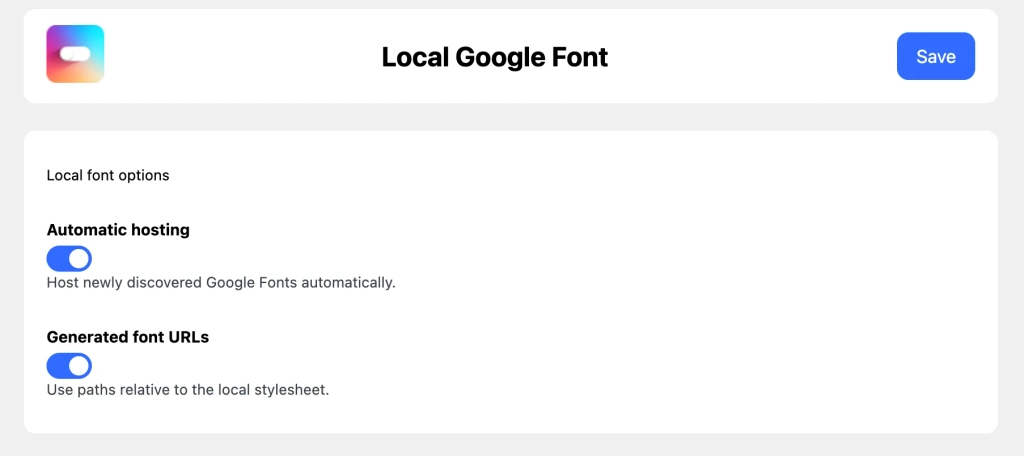
When a new Google Fonts sheet appears, WPMasterToolKit immediately attempts to retrieve the necessary files and create a local version.
If the generation is successful, subsequent loads will use the local stylesheet directly.
If local hosting fails, the module retains the original URL instead of replacing the resource with an incomplete sheet. This allows the site to continue using the existing Google Fonts source.
Manually scan the home page
Some fonts may not have been encountered yet since the module was activated.
To make them easier to find, the interface includes a button Scan Homepage.
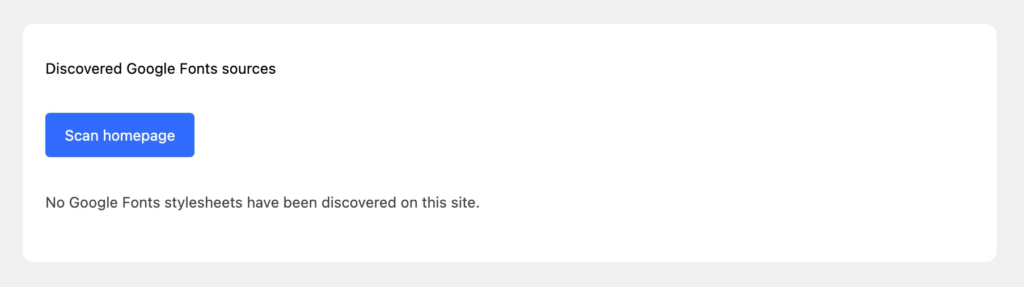
WPMasterToolKit then sends a request to the site's homepage and searches its content for the URLs corresponding to the Google Fonts style sheets.
Newly discovered sources are saved in the module and can then be hosted locally.
This feature is especially useful right after activating the module to quickly initialize the list of Google Fonts used on the site.
Manage Google Fonts Sources Individually
All detected sources are visible in the WPMasterToolKit admin panel.
For each source, the module can display, among other things, its status, the detected font families, their variants, the number of downloaded files, their total size, and the date they were generated.
There are three main statuses that allow you to quickly determine the status of a source:
Discovered means that the Google Fonts sheet has been detected but that no valid local version is currently in use.
Hosted locally indicates that the necessary files have been downloaded and that the local version is ready.
Hosting failed indicates that an error occurred during generation.
When an error occurs, it is also displayed in the interface.
Reload a local police force
Google may update the files associated with a stylesheet, or you may simply want to rebuild the local files.
The button Reload fonts allows you to restart the generation of an already-hosted source.
WPMasterToolKit then re-downloads the necessary resources and generates a new version of the source.
This new version is used only after it has been fully generated.
Delete local files
A hosted source can also be deleted individually using the action Remove hosted files.
The corresponding local files are then deleted, and the source returns to its original state.
It is also possible to use Remove all hosted data to delete all local files and sources found for the current site.
The module then restarts with an empty list of sources.
Changing themes also triggers a cleanup of this data. This prevents the system from retaining Google Fonts that were discovered for a theme that is no longer active.
Relative or absolute URLs for fonts
The setting Generated font URLs allows you to choose how font files are referenced in the generated CSS sheet.
By default, WPMasterToolKit uses relative paths.
For example, the local CSS sheet can reference a file located in the same folder using a URL like this:
./font-file.woff2
When this option is disabled, a full URL to the local file is used.
If this setting is changed, WPMasterToolKit regenerates the CSS sheets from the existing sources so that they immediately use the new URL format.
Removing Unnecessary Connections to Google
WordPress themes or plugins can add resource hints such as preconnect or dns-prefetch to Google Fonts.
These optimizations are useful when fonts are actually downloaded from Google, but become unnecessary when all known fonts are available locally.
WPMasterToolKit can therefore remove the instructions preconnect and dns-prefetch pointing to:
fonts.googleapis.com
and:
fonts.gstatic.com
This deletion is intentionally cautious: it is performed only when All Google Fonts sources found have a valid local version.
If a source still needs to be retrieved from Google, the login credentials are retained.
How do I use the Local Google Font module?
Start by enabling Google Font Localization from the WPMasterToolKit module list.
You can then open its settings page.
In most cases, you can keep Automatic hosting Enabled so that any new Google Fonts detected are automatically downloaded to your server.
Then use Scan Homepage to immediately search for the Google Fonts on your home page.
The various sources will appear in the list. You can check their status and, if necessary, use Host locally to manually start downloading them.
Once the source is ready, WPMasterToolKit automatically uses the local CSS sheet instead of the one hosted by Google.
Where are the fonts stored?
The generated files are saved in the directory wp-content from WordPress, in an area reserved for WPMasterToolKit.
Each site has its own directory, and each Google Fonts source then has its own folder.
This separation is also supported for WordPress multisite installations: the current site ID is included in the storage path.
Each generation includes, in particular, the downloaded WOFF2 files and the style sheet font.css used by the site and a manifesto describing the resources of this generation.
Our Technical Choices for Ensuring the Reliability of Local Hosting
Automatically downloading remote files and modifying resources used on the front end requires some precautions.
That's why the module doesn't simply download a font and then immediately replace its URL.
Strict Validation of Google Fonts Sources
Valid style sheets must use HTTPS and originate specifically from fonts.googleapis.com, on the endpoints /css or /css2.
URLs containing usernames, passwords, or custom ports are not allowed.
Validation of Font Files
Downloaded files are also checked.
The module works with WOFF2 files and checks, among other things, their HTTP response, their content type (when provided), their size, and their file signature.
The maximum accepted size for a font file is 5 MB, whereas a complete source cannot exceed 50 MB.
These limits help prevent an unexpected source from causing excessive amounts of data to be downloaded.
Unchanging Generations
When a source is rebuilt, WPMasterToolKit creates a new build in a temporary folder.
The fonts, the CSS sheet, and its manifest are prepared before this build becomes the active version.
This minimizes the likelihood of serving a partially built generation during an update.
The module also retains a limited number of older generations and deletes the oldest ones.
Check Before Use
Before replacing a remote Google Fonts sheet, WPMasterToolKit checks the locally generated version.
The manifest must be valid, the CSS file must be present, the expected font files must exist, and their sizes must match the stored information.
The local CSS sheet must also no longer contain any references to fonts.gstatic.com.
If these checks fail, the local source is not considered ready.
Protection Against Concurrent Operations
The module also uses a source-based locking system.
For example, it prevents two requests from attempting to rebuild or delete the same files at the same time.
These locks have an expiration time to ensure that an interrupted process cannot permanently block a source.
Filters Available to Developers
The module exposes two WPMasterToolKit filters that allow other parts of the site or developers to use its find-and-replace mechanism.
wpmastertoolkit/local_google_font/replace_url
This filter allows you to pass a URL—which may be a Google Fonts stylesheet—to the module.
$url = apply_filters(
	'wpmastertoolkit/local_google_font/replace_url',
	$url,
	$handle
);
The first parameter is the URL of the stylesheet, and the second is the associated optional handle.
If the URL is not a compatible Google Fonts sheet, it is returned as-is.
If it corresponds to a Google Fonts source, the module detects it and returns the local version when a valid build is available. With automatic hosting enabled, the module can also attempt to generate this local version.
wpmastertoolkit/local_google_font/replace_in_content
This filter allows you to search for Google Fonts URLs that appear directly within a string of characters:
$content = apply_filters(
	'wpmastertoolkit/local_google_font/replace_in_content',
	$content
);
WPMasterToolKit then searches for the URLs that correspond to fonts.googleapis.com/css or fonts.googleapis.com/css2 in the content and processes them using its replacement system.
This can be useful when an integration directly embeds a Google Fonts URL into HTML or other content rather than going through WordPress's standard style queuing system.
Conclusion
The module Google Font Localization The WPMasterToolKit feature automatically converts remote Google Fonts used by WordPress into resources hosted directly on your site.
It detects Google Fonts style sheets, downloads the WOFF2 files, generates the local CSS, verifies the integrity of the generated CSS, and then replaces the remote URLs when a reliable local version is available.
The module also offers manual scanning, detailed source management, font reloading, file cleanup, and the removal of unnecessary connections to Google servers.
This allows you to keep the Google fonts used by your theme or plugins while reducing external dependencies and maintaining greater control over how these resources are served to visitors.