

 EN
EN  FR
FR  ES
ES 
Deactivate Your WordPress Blog Without Deleting Your Posts Using WPMasterToolKit
WordPress was originally designed as a CMS for blogging. However, today, many WordPress sites have absolutely no need for this feature.
This is particularly true for showcase websites, corporate websites, and even some WooCommerce stores that use WordPress solely to manage their pages and custom content.
Even when the blog isn't being used, WordPress continues to display the «Posts» menu, categories, tags, and various features related to blogging.
We developed the Disable Blog module in WPMasterToolKit to meet this need.
This module allows you to disable WordPress's blogging features without deleting existing posts, while retaining pages and custom post types.
You can also choose what happens when a visitor tries to access an old blog URL: display a 404 error or redirect them to a page on your site.
Why Disable the Blog Feature in WordPress?
Not all WordPress sites are intended for publishing posts.
Let's take the example of a showcase website consisting of just a few pages: Home, About, Services, and Contact.
In this context, the «Articles» menu in the WordPress admin panel does not necessarily add any value.
It can even cause confusion for users who aren't sure whether they should create a page or an article to add new content.
Disabling the blog therefore simplifies WordPress by removing features you don't need.
However, simply hiding the «Articles» menu is not enough.
Old posts may still be publicly accessible, appear in search results, or be retrieved via the WordPress REST API.
The Disable Blog module goes a step further by modifying several aspects of how WordPress works.
Deactivate WordPress Posts Without Deleting Your Content
One of the main advantages of the Disable Blog module is that it does not delete any data.
When you activate the plugin, your existing WordPress posts remain stored in the database.
The same applies to categories, tags, and associated comments.
The module disables their use in the blog, but does not delete them.
This approach has several advantages.
You can temporarily disable a blog without losing your content. If you decide to reactivate it later, your old posts will still be there.
This is particularly useful during a website redesign, a migration, or when you want to keep old content without making it publicly accessible.
Important: The Disable Blog module only affects native WordPress posts. Pages and Custom Post Types (CPT) remain available.
So you can continue to use WordPress to manage products, portfolios, events, or other types of custom content.
Remove the blog features from the WordPress admin panel
When the Disable Blog module is enabled, several blogging-related items disappear from the admin interface.
The goal is to offer a more streamlined WordPress environment, particularly suited to sites that do not use posts.
Hide the "Articles" menu
The plugin automatically removes the «Posts» menu from the WordPress admin panel.
As a result, users no longer see this menu in the sidebar.
But unlike a simple plugin for customizing the admin interface, Disable Blog also blocks direct access to the post management screens.
If a user attempts to access the list of posts or the editor for a native post directly, WordPress displays a message stating that the blog is disabled, along with an HTTP 403 response.
The module also blocks the category and tag management screens when they are used exclusively by native posts.
Clean up the admin bar and dashboard
Disable Blog also removes various elements that are no longer needed once the blog is disabled.
Among the items involved:
- The shortcut for creating a new post in the admin bar.
- The link to edit an article from the admin bar.
- The «Quick Draft» widget on the dashboard.
- The article counter in the «At a Glance» widget.
These changes simplify the interface without affecting the functionality for managing pages or other types of content.
Hide WordPress posts on the public part of the site
The Disable Blog module isn't limited to the admin panel.
It also modifies WordPress requests to prevent native posts from appearing on the public part of the site.
Articles are specifically excluded from searches and queries that target multiple types of content.
The module also supports blog-related archive pages, such as author, date, category, and tag archives, depending on the types of content involved.
What happens to the categories and tags?
Some plugins or developers use WordPress categories and tags with custom post types.
It would therefore be problematic to systematically disable these taxonomies.
That is why the module checks whether a category or tag is also associated with a custom content type that is publicly viewable.
If that is the case, the taxonomy remains available for this content.
However, if it is used exclusively for native articles, its blog-related features are disabled.
This distinction helps preserve the functionality of the other content on your site.
WordPress pages continue to function
Deactivating the blog does not mean deactivating WordPress.
Your standard pages remain accessible and can continue to be created and edited as usual.
Custom post types are also preserved.
The module therefore distinguishes native WordPress posts from other content so as not to unnecessarily disrupt the rest of the site.
Choosing Between a 404 Error and a Redirect for Old Blog URLs
Deactivating a blog raises an important question: What should you do when a user tries to view an old post?
They may have saved a link in their bookmarks or accessed your site from a Google search result.
The Disable Blog module offers two configurable behaviors.
Option 1: Return a 404 error
Default Behavior
When this option is selected, the old URLs for the deactivated blog return a valid HTTP 404 response.
WordPress can then display your theme's 404 error page.
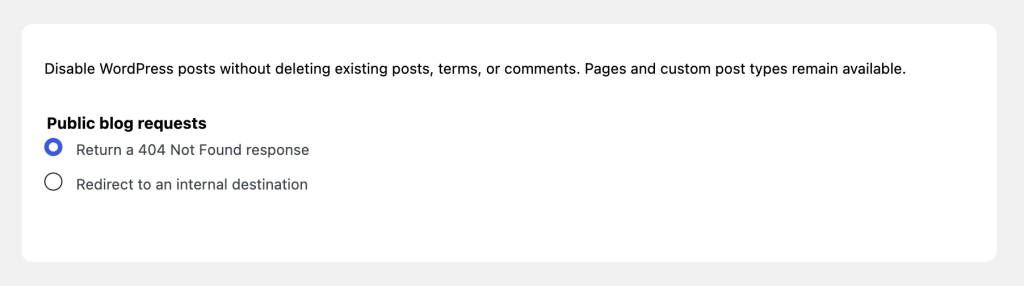
This solution is particularly suitable when you no longer want to make old content available and there is no relevant page to replace it.
The module also sends headers that prevent this response from being cached.
Option 2: Redirect to another page
You can also choose to redirect the blog's old URLs to an internal destination.
For example, you can direct visitors to your home page or to a page that showcases your services.
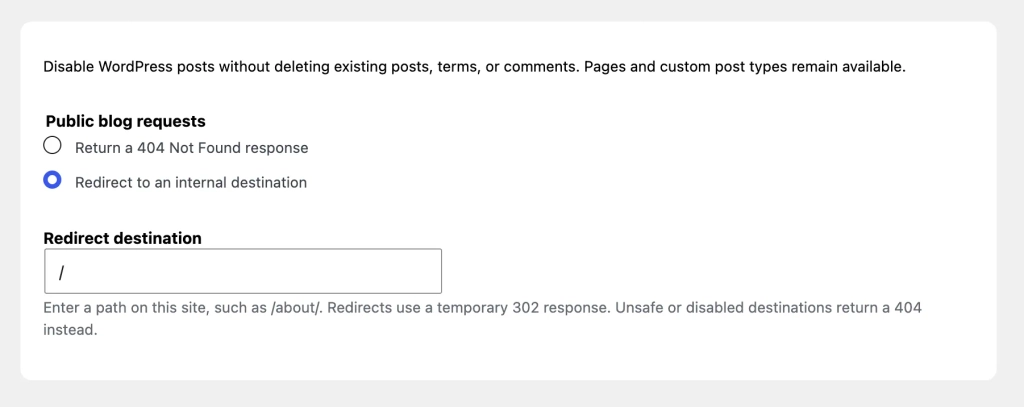
Simply enter the destination path in the module settings.
Example:
/services/
Visitors will then be redirected to this page.
The module uses a 302 (temporary) HTTP redirect.
This distinction is important for SEO: a 302 redirect is not the same as a permanent 301 redirect. If you are performing a permanent SEO migration that requires individual 301 redirects, additional configuration will be necessary.
Protection against incorrect redirects
To avoid configuration issues, the module checks the destination before performing a redirect.
It allows only destinations within the site.
It also checks to make sure that the destination does not match the current URL, a disabled post, the posts page, or certain disabled blog archives.
If the destination is invalid, the module returns a 404 error rather than performing a problematic redirect.
In particular, this helps limit the risk of redirect loops.
What happens if WordPress displays the latest posts on the home page?
The module behaves differently when WordPress is configured to display the latest posts on the home page.
In this case, the articles are excluded from the main query, but the home page is not automatically redirected to another URL.
It is therefore best to set up a static homepage in the WordPress Reading settings if you want to use your site without a blog.
Remove items from the navigation menus
Even after deactivating a blog, links to old posts may still appear in the site's navigation menus.
The Disable Blog module also supports this scenario.
It automatically removes links from the displayed menus that correspond to native posts, the page configured as the posts page, and categories or tags used exclusively by the blog.
These items are also removed from the options available in the classic menu editor when their content types are disabled.
The links in question are not permanently removed from your menu configuration: the module filters them out when they are displayed.
This allows you to preserve the existing structure if you decide to reactivate the blog at a later time.
Disable comments on articles
When you deactivate a blog, there is generally no longer any reason for the comments associated with old posts to remain accessible.
Disable Blog therefore also affects the WordPress comment system.
It disables comments and pings on native posts, hides existing comments on them, and blocks new submissions.
Attempts to post comments on these articles are rejected with an HTTP 403 response.
However, comments associated with pages and custom post types are not disabled by this feature.
The module targets only content from the native WordPress blog.
Disable articles in the REST and XML-RPC APIs
WordPress allows access to content through various mechanisms, including its REST API and XML-RPC.
Hiding articles in the admin panel or on the public site would therefore not be enough to completely disable their use.
We have implemented additional controls to cover these access points.
WordPress REST API
The module blocks the REST routes associated with native articles.
It also modifies REST search requests to exclude posts and filters comment collections so as not to display those associated with the blog.
The ability to post new comments on native articles is also blocked.
Category and tag paths are disabled only when these taxonomies are not used by other types of public content.
XML-RPC
The module also supports the main XML-RPC methods for viewing, creating, editing, or deleting native articles.
Some older features that were exclusively related to the blog have been removed.
For methods that can also handle other types of content, the module checks the type of content in question before blocking the operation.
This approach makes it possible to preserve XML-RPC functionality for pages and other content when they do not involve native articles.
Exclude disabled articles from XML sitemaps
An important consideration when deactivating a blog is search engine optimization.
If old articles remain in the XML sitemaps, search engines may continue to discover their URLs even though that content is no longer accessible.
The Disable Blog module directly affects the generation of sitemaps to prevent this from happening.
It supports native WordPress sitemaps as well as those from two popular SEO plugins:
WordPress
Native posts are excluded from the WordPress sitemap, as is the page designated for displaying posts.
Yoast SEO
Posts and the Posts page are excluded from the sitemaps generated by Yoast SEO.
Rank Math SEO
The same exclusions apply to Rank Math sitemaps.
In all three cases, categories and tags are also excluded from sitemaps when they are associated exclusively with native articles.
The taxonomies used by other content remain intact.
The module also disables the Rank Math sitemap cache so that exclusions can be taken into account when the sitemaps are generated.
Please note: Excluding articles from sitemaps does not mean they will immediately disappear from Google search results. Search engines must first recrawl the affected URLs and take their HTTP responses into account.
How do I use the Disable Blog module in WPMasterToolKit?
The module's configuration has been designed to be as simple as possible.
1
Enable the "Disable Blog" module
Go to WPMasterToolKit and enable the "Disable Blog" module.
2
Access parameters
Open the module's configuration page to customize how old blog URLs behave.
3
Select the desired behavior
There are two options available in the «Public blog requests» section:
- Return a 404 Not Found response.
- Redirect to an internal destination.
4
Configure the destination if necessary
If you choose to use a redirect, enter the path of the page to which you want to redirect visitors.
By default, the suggested destination is /, which corresponds to the website's home page.
5
Save settings
Save your changes to apply the selected behavior.
Once the module is enabled, blog-related features are automatically disabled. You do not need to configure menus, comments, the REST API, or sitemaps individually.
Our Technical Approach to Properly Shutting Down the WordPress Blog
Deactivating a WordPress blog may seem simple at first glance, but this feature actually affects many parts of the CMS.
So we decided to use WordPress’s native hooks to deactivate posts without modifying the core files or deleting the content.
Address the requests rather than deleting the articles
In particular, the module uses the WordPress action pre_get_posts to modify queries before they are executed.
This allows you to exclude native articles from searches and other relevant queries while retaining pages and Custom Post Types.
This approach avoids deleting content or directly modifying the database.
Generate valid HTTP responses
To handle the blog's old URLs, the module runs before the template is rendered, using template_redirect.
Depending on the configuration, it can perform a temporary 302 redirect or trigger a true 404 error.
In the latter case, the WordPress request indicators are updated so that the theme can display its usual error template.
We have also implemented checks to prevent external redirects, disabled destinations, and redirect loops.
Preserving Other WordPress Features
Another important goal was to avoid disabling features used by other content.
Categories, tags, comments, and certain application programming interfaces can also be used with custom content types.
The module therefore checks the context before applying its restrictions.
Finally, in keeping with WPMasterToolKit’s modular design, the Disable Blog PHP class is loaded only when the module is activated.
This way, you only load the features your site actually needs.
Conclusion
If you're using WordPress to create a portfolio site, a corporate website, or a project that doesn't require a blog, the Disable Blog module from WPMasterToolKit lets you disable the blogging features without deleting your existing content.
It doesn't just hide the «Articles» menu—it also affects public URLs, comments, navigation menus, the REST API, XML-RPC, and XML sitemaps.
You can choose between a 404 error and a temporary redirect for old URLs, while preserving the pages and custom content types.
With Disable Blog, you can tailor WordPress to your site's actual needs without affecting your data or adding more plugins.